Top 7 Outlook Productivity Hacks for Busy Professionals
Boost productivity with Outlook desktop and web hacks. Learn 7 time-saving tips to organize emails, automate tasks, and streamline your workflow.

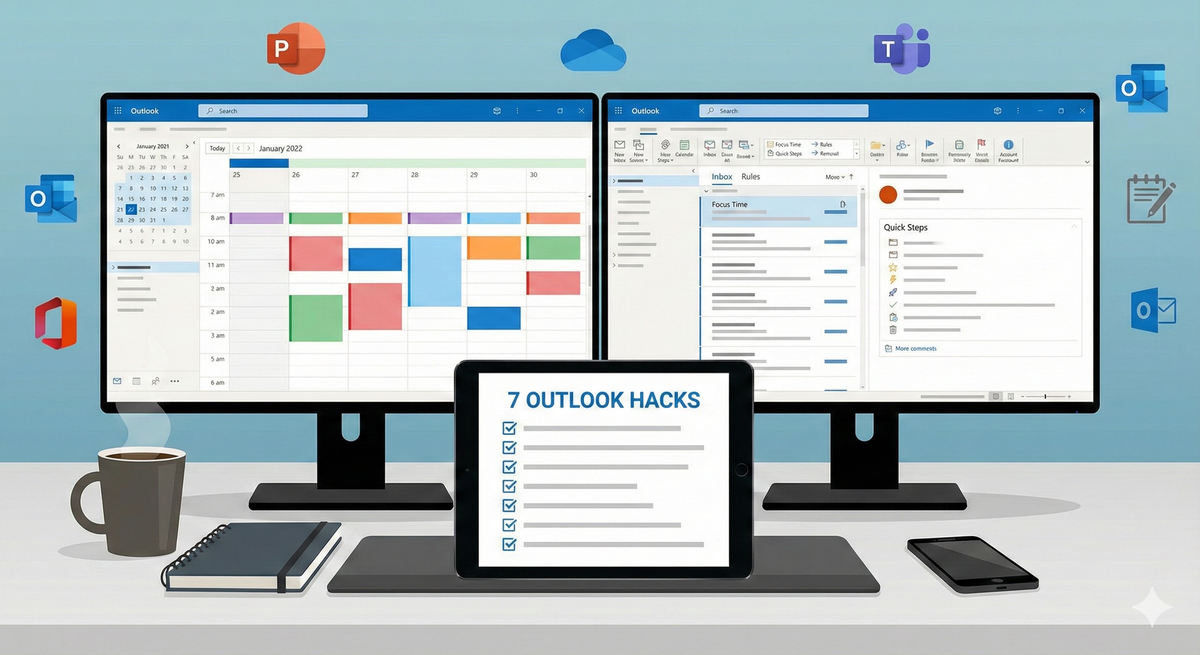
If you spend hours each week sorting emails, jumping between calendars, or trying to stay on top of meeting requests, you’re not alone. Outlook is a powerful tool, but most busy professionals only use a fraction of what it can do — and that often leads to wasted time, cluttered inboxes, and missed opportunities to stay organized.
The good news? With just a few built-in features, Outlook can become a productivity powerhouse. Whether you're using Outlook Desktop or Outlook Web, there are simple hacks you can apply today to streamline communication, automate repetitive tasks, organize your schedule, and focus on what truly matters.
At PeerShare.co.uk, our community shares tips, templates, and real-world techniques for working smarter across Microsoft Office. These Outlook hacks will help you take control of your inbox, your day, and your workflow — without adding more tools to your stack.
1. Use Focused Inbox to Instantly Filter What Matters Most
Applies to: Desktop + Web
Focused Inbox separates important emails from everything else, pushing noise into the “Other” tab. This is a lifesaver for professionals who receive dozens (or hundreds) of emails each day.
How to use it:
- Desktop: View → Show Focused Inbox
- Web: Settings → Mail → Focused Inbox
Train Outlook by moving emails between tabs — it learns your preferences automatically.
2. Convert Emails to Tasks with One Click
Applies to: Desktop + Web
Instead of rereading emails repeatedly, convert them into Microsoft To Do tasks or Outlook Tasks instantly.
Desktop: Drag the email into the Tasks icon.
Web: Click More Actions (…) → Create task.
This keeps your inbox clean while adding actionable items to your daily workflow.
3. Use Quick Steps to Automate Repetitive Email Actions
Applies to: Desktop only
Quick Steps let you automate multi-step actions like:
- Moving emails to a folder
- Forwarding messages to a manager
- Categorizing + flagging + marking read
- Adding tags or labels
Example:
Create a Quick Step called “Client Follow-Up” that forwards an email template to a client and moves the original to your “Follow-Up” folder — all in one click.
How to use:
Home → Quick Steps → Create New.
4. Schedule Emails for Later (Send Later)
Applies to: Desktop + Web
Perfect when you're working late but don’t want to disturb clients or coworkers.
Desktop: Options → Delay Delivery → Set time
Web: Send → Schedule send → Choose date/time
This hack helps maintain work boundaries while still staying productive.
5. Use Rules to Auto-Sort Messages Like a Pro
Applies to: Desktop + Web
Rules are one of Outlook’s most powerful automation tools.
Use them to:
- Sort newsletters
- Auto-forward invoices
- Move notifications out of your main inbox
- Assign categories
- Flag messages automatically
Recommended rules for busy professionals:
- Move messages with “receipt,” “invoice,” or “order” to your Finance folder
- Auto-highlight emails from your manager
- Send reminders to a separate folder
A clean inbox = a faster brain.
For a full walkthrough on setting up and customizing Outlook rules, you can follow Microsoft’s official guide here: https://support.microsoft.com/en-us/office/set-up-rules-in-outlook-75ab719a-2ce8-49a7-a214-6d62b67cbd41
6. Use Calendar Peek + Scheduling Assistant for Faster Meetings
Applies to: Desktop + Web
Stop juggling tabs:
Hover over Calendar (Desktop) or click the panel (Web) to see your schedule without leaving your inbox.
Scheduling Assistant shows:
- Availability
- Conflicts
- Suggested times
Perfect for booking meetings without endless back-and-forth emails.
7. Use Templates + Quick Parts to Reply Faster
Applies to: Desktop + Web
If you repeat the same responses (follow-ups, confirmations, instructions), save them as templates.
Email Templates
Desktop: Home → New Items → More Items → Choose Form
Web: New mail → Templates → Add new template
Quick Parts (Desktop only)
Insert reusable blocks of text like signatures, disclaimers, or instructions.
Use case examples:
- “Thank you for your email…”
- Weekly report requests
- Client confirmation messages
Pair this with internal templates on PeerShare.co.uk for even faster workflows.
Internal + External Links
Internal Links
- Office 365 Collaboration: Tips for Working Smarter with Teams & SharePoint
- 10 Time-Saving Microsoft Word Tricks You Probably Didn’t Know
External Link
🏁 Conclusion: Make Outlook Work for You — Not the Other Way Around
With the right habits and a few powerful features, Outlook becomes more than an email client — it’s a complete productivity system. From automation to smart scheduling to reusable templates, these hacks help busy professionals stay in control of communication and time.
Whether you’re managing projects, clients, or your daily schedule, these Outlook techniques will help you work faster, stay organized, and reduce stress. And the best part? You don’t need any add-ons — everything is built right in.
Find more templates and solutions at PeerShare.co.uk — upload, share, and solve your Office challenges today.